|
Here you can see JCheckBox, JRadioButton, JButton, JTextBox, JScrollBar, JTabbedPane, JSplitPane, JComboBox.
Default colours..
This is how a Swing application looks using NimROD Look & Feel.
|

|
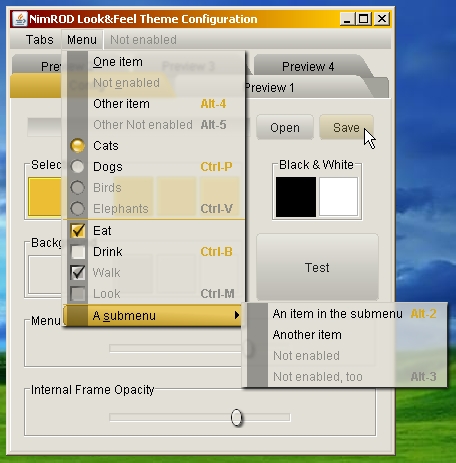
Here you can see the theme editor with default colours, showing menu transparency and buttons highlighted.
|

|
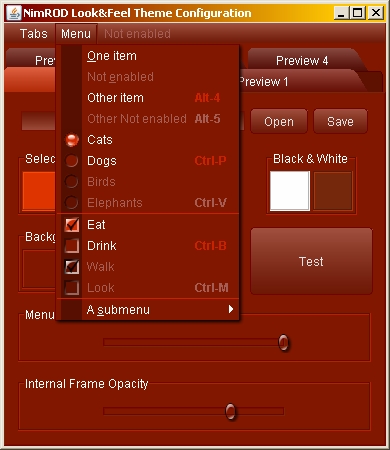
Here you can see the theme editor with a red colour scheme and an opaque menu.
|

|
Here you can see the theme editor with a blue colour scheme and a completely transparent menu.
|

|
Here you can se the theme editor saving a theme file with the default name, NimRODThemeFile.theme.
|

|
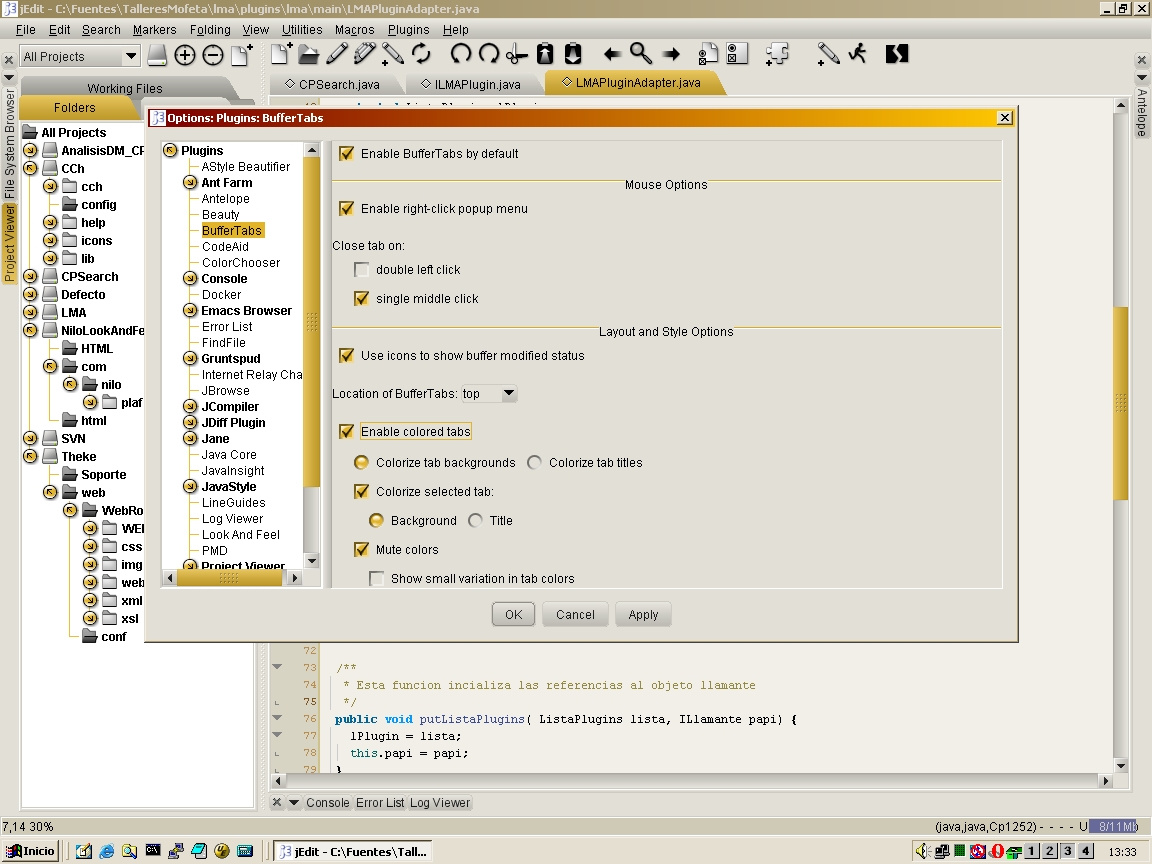
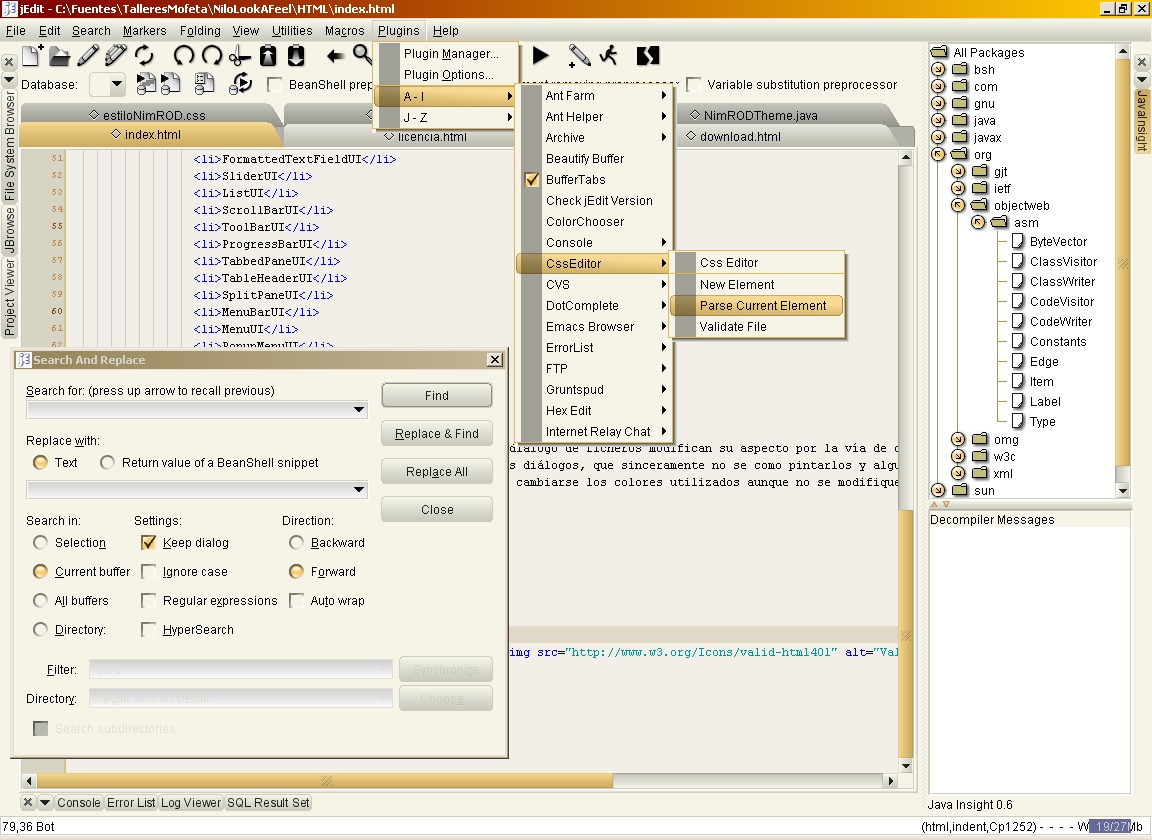
Here you can se JEdit using the theme file defined in the previus screenshot. You can see transparent menus in the real world.
|

|
Here, NetBeans. If the nimrodlf.jar file is in the netbeans/bin directory,
the command line is:
netbeans -cp:p nimrodlf.jar --laf com.nilo.plaf.nimrod.NimRODLookAndFeel
If nimrodlf.jar is in another directory, the command line is:
netbeans -cp:p PATH_TO/nimrodlf.jar --laf com.nilo.plaf.nimrod.NimRODLookAndFeel
|

|
Here, NetBeans with a dark theme. If the nimrodlf.jar file is in the netbeans/bin directory,
and the theme file is in father directory, the command line is:
netbeans -J-Dnimrodlf.themeFile=../tabaco.theme -cp:p nimrodlf.jar --laf com.nilo.plaf.nimrod.NimRODLookAndFeel
|

|
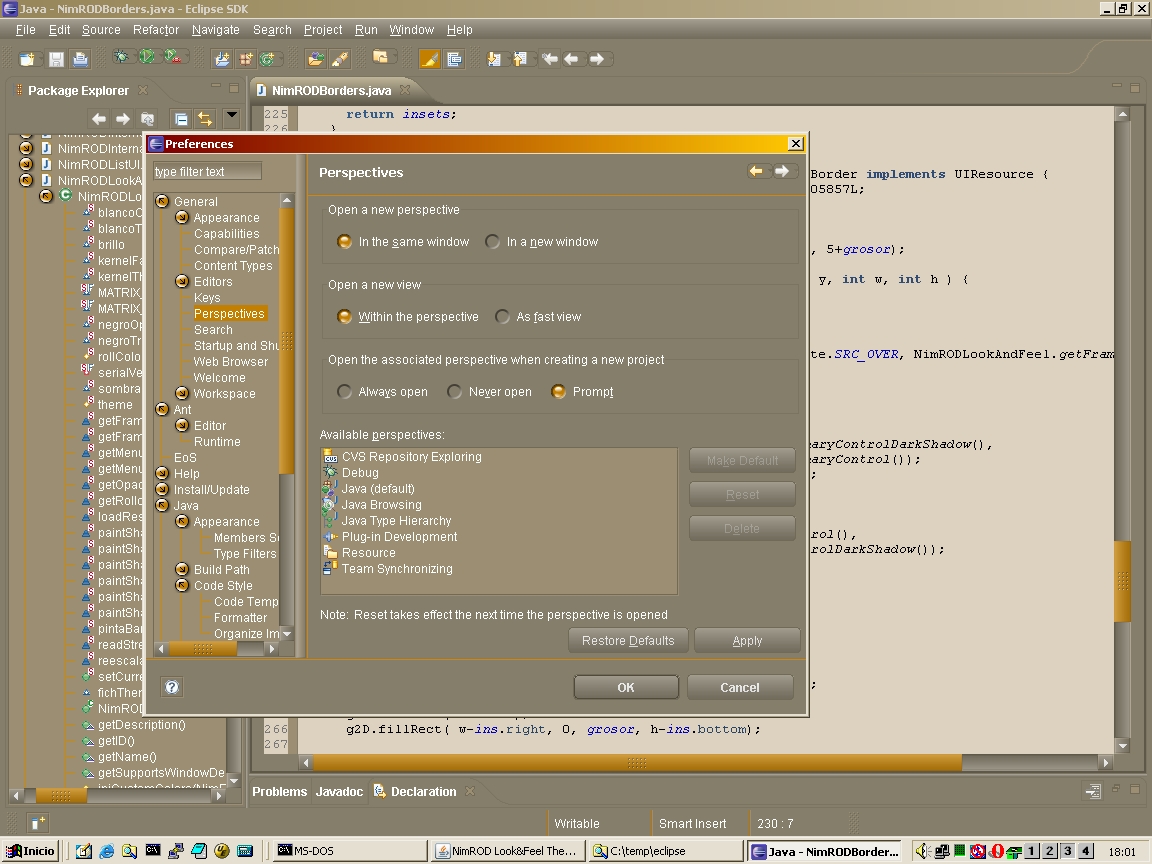
Here, Eclipse with default colour scheme. To execute Eclipse using NimROD Look & Feel, you need the EoS
plugin.
|

|
Eclipse with the "tabaco.theme" colour scheme which was used with Netbeans. Using EoS plugin and putting in Eclipse root directory
the theme file renamed as NimRODThemeFile.theme.
|

|
Here you can see JCheckBox, JRadioButton, JButton, JTextBox, JScrollBar, JTabbedPane, JSplitPane, JComboBox.
Default colours.
|

|
Here you can see menus and JTree.
|

|
JComboBox and JTable.
|

|
JList and JTextArea.
|

|
JSlider and JSpinner.
|

|
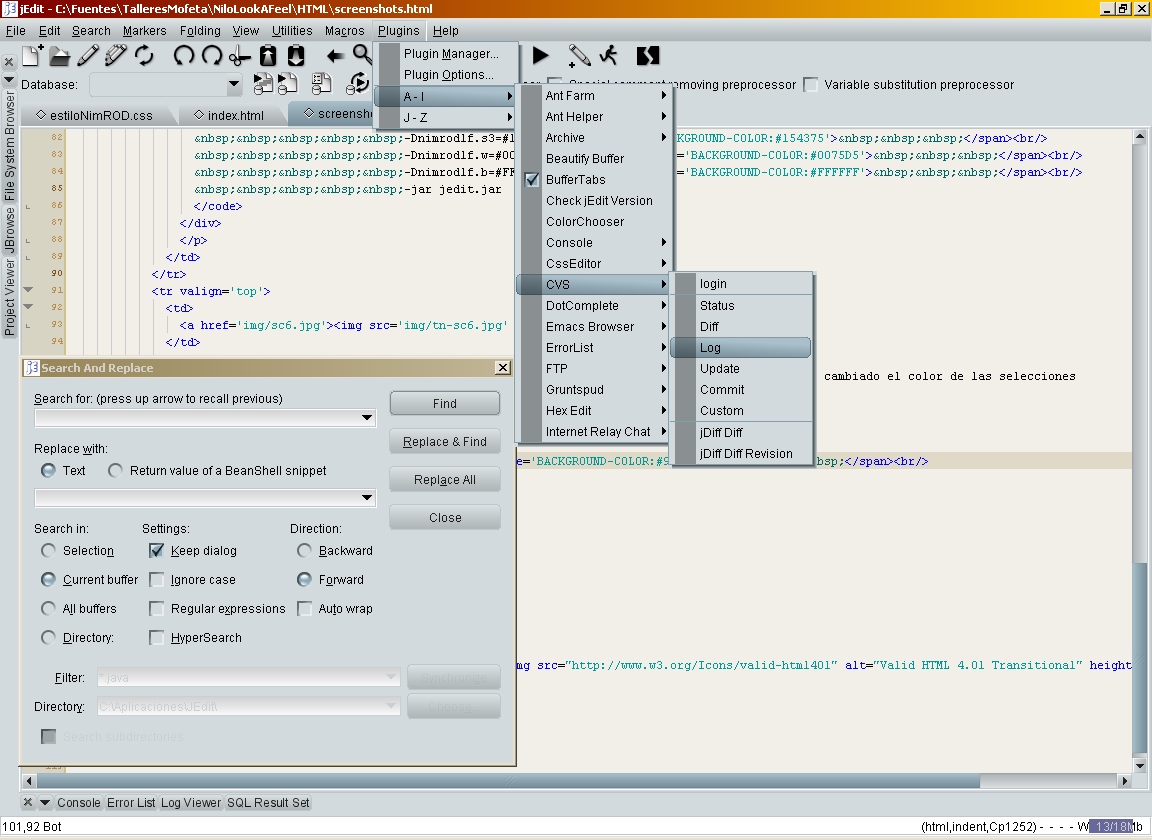
User can change the colours passing properties to the JVM.
This screenshot shows JEdit launched with the next command line, which changes all colours:
                java -Dnimrodlf.p1=#6CB6FF

                     -Dnimrodlf.p2=#97CBFF

                     -Dnimrodlf.p3=#9FCFFF

                     -Dnimrodlf.s1=#2575CD

                     -Dnimrodlf.s2=#1D5A9E

                     -Dnimrodlf.s3=#154375

                     -Dnimrodlf.w=#0075D5

                     -Dnimrodlf.b=#FFFFFF

                     -jar jedit.jar
|

|
User doesn't need to change all colours to change the applicaction. He can change only de "selection" colour and the app looks
different.
This screenshot shows JEdit launched with the next command line:
                  java -Dnimrodlf.selection=0x96b3c2

                       -jar jedit.jar
|

|
User can change de background colour too.
This screenshot shows JEdit launched with the next command line:
                  java -Dnimrodlf.selection=0x96b3c2

                       -Dnimrodlf.background=#D2DADD

                       -jar jedit.jar
|