|
Here you can see JCheckBox, JRadioButton, JButton, JTextBox, JScrollBar, JTabbedPane, JSplitPane, JComboBox.
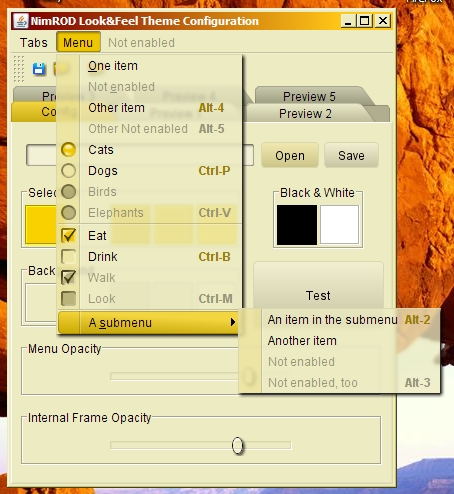
Default colours..
This is how a Swing application looks using NimROD Look & Feel.
|

|
Here you can see the theme editor with default colours, showing menu transparency and buttons highlighted.
|

|
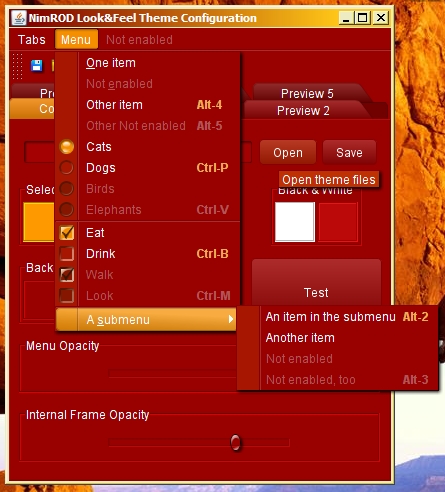
Here you can see the theme editor with a red colour scheme and an opaque menu.
|
|
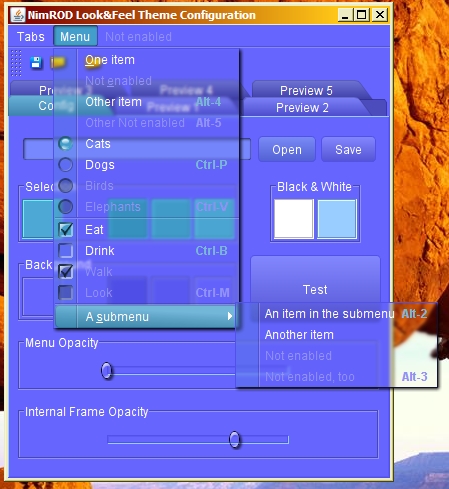
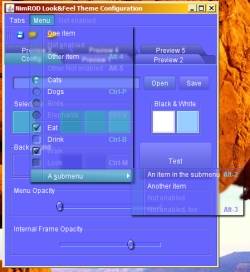
Here you can see the theme editor with a blue colour scheme and a completely transparent menu.
|

|
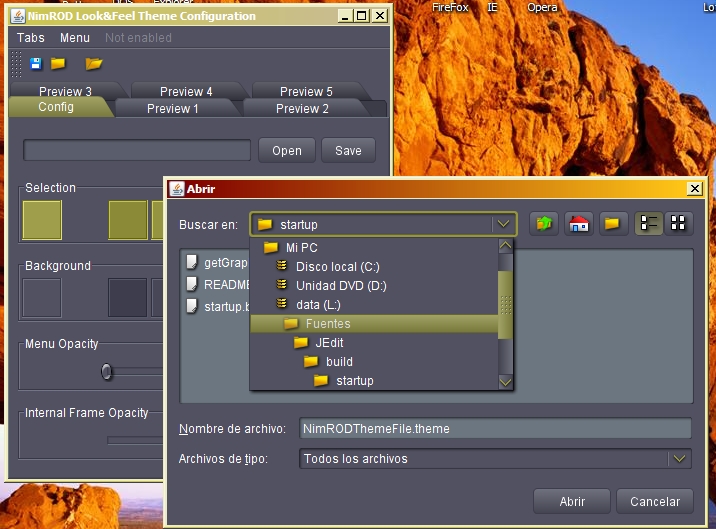
Here you can se the theme editor saving a theme file with the default name, NimRODThemeFile.theme.
|

|
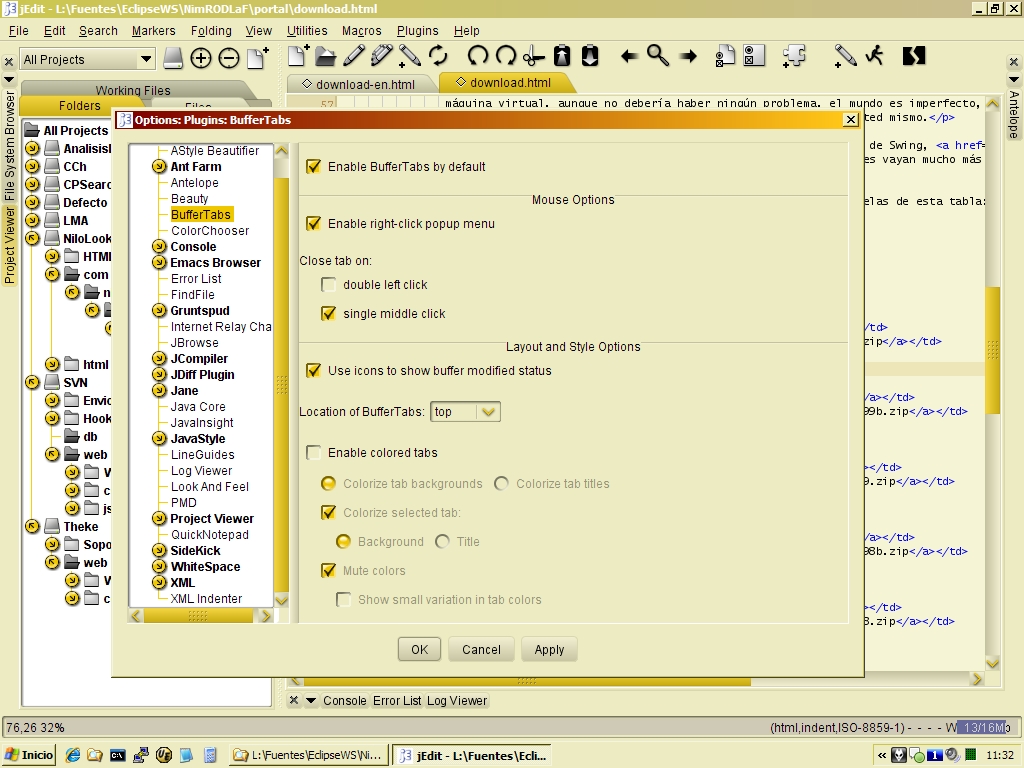
Here you can se JEdit using the default theme file. You can see transparent menus in the real world.
|

|
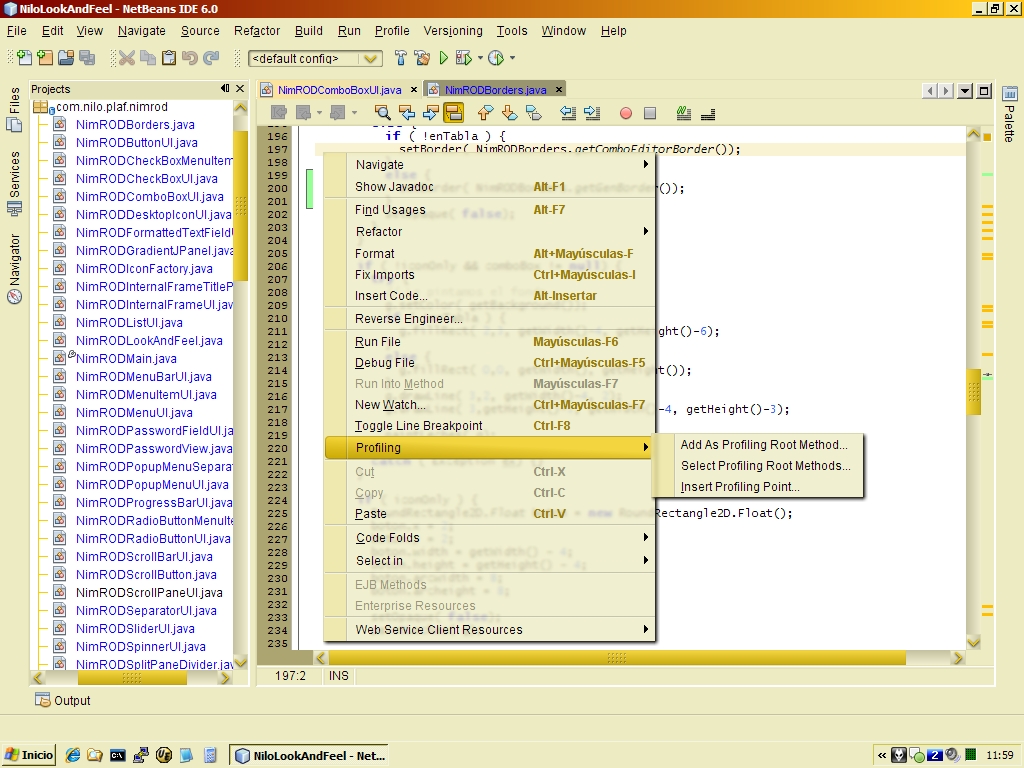
Here, NetBeans. If the nimrodlf.jar file is in the netbeans/bin directory,
the command line is:
netbeans -cp:p nimrodlf.jar --laf com.nilo.plaf.nimrod.NimRODLookAndFeel
If nimrodlf.jar is in another directory, the command line is:
netbeans -cp:p PATH_TO/nimrodlf.jar --laf com.nilo.plaf.nimrod.NimRODLookAndFeel
|

|
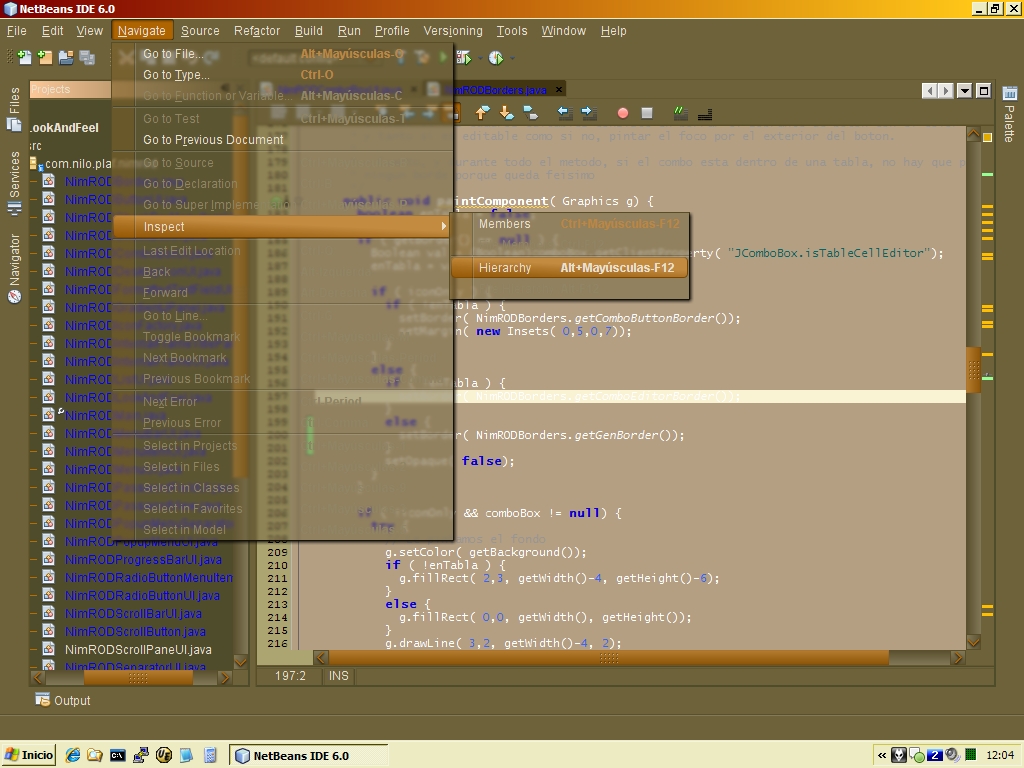
Here, NetBeans with a dark theme, the DarkTabaco.theme. If the nimrodlf.jar file is in the netbeans/bin directory,
and the theme file is in father directory, the command line is:
netbeans -J-Dnimrodlf.themeFile=../DarkTabaco.theme -cp:p nimrodlf.jar --laf com.nilo.plaf.nimrod.NimRODLookAndFeel
|

|
Here, Eclipse with default colour scheme. To execute Eclipse using NimROD Look & Feel, you need the EoS
plugin.
|

|
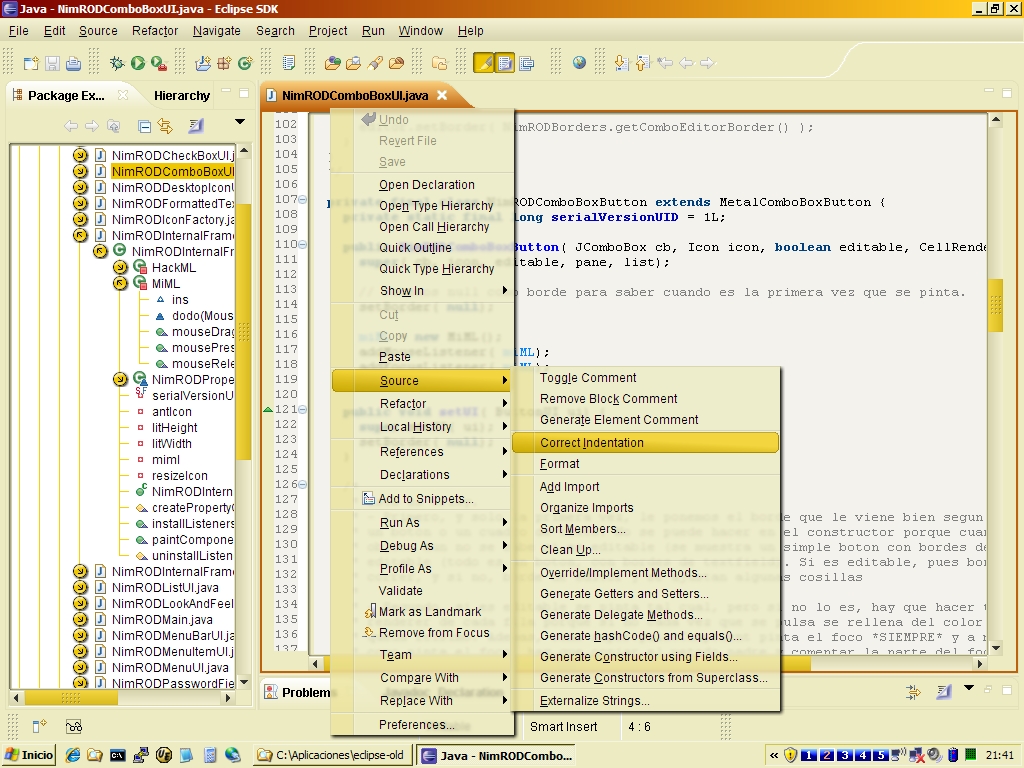
Eclipse with the "DarkTabaco.theme" colour scheme which was used with Netbeans. Using EoS plugin and putting in Eclipse root directory
the theme file renamed as NimRODThemeFile.theme.
|